
Method |
How codes are delivered |
Availability |
Authenticator app |
A 6-digit code generated by an authenticator app such as Google Authenticator, Microsoft Authenticator or 1Password |
All users, any country |
Text message (SMS) |
A 6-digit code sent by SMS to your mobile |
Australian, New Zealand and UK mobile numbers only |
If your mobile number is outside Australia, New Zealand or the UK, choose the authenticator app. Once it’s set up, it also works when you have no mobile signal.
Before you start
If you plan to use an authenticator app, install one on your phone before you begin. If you plan to use SMS, have your Australian, New Zealand or UK mobile number ready.
Setting up 2FA as a new user
On the Secure your account screen, select Authenticator app or Text message (SMS).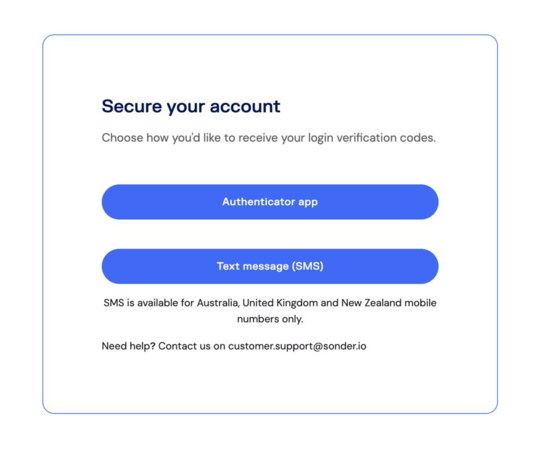
If you choose Authenticator app:
- Open your authenticator app and scan the QR code shown on screen. If you can’t scan it, enter the setup key shown below the QR code instead. Please keep this key private.
- Enter the 6-digit code your app generates in the Authenticator code field.
- Select Verify and continue.
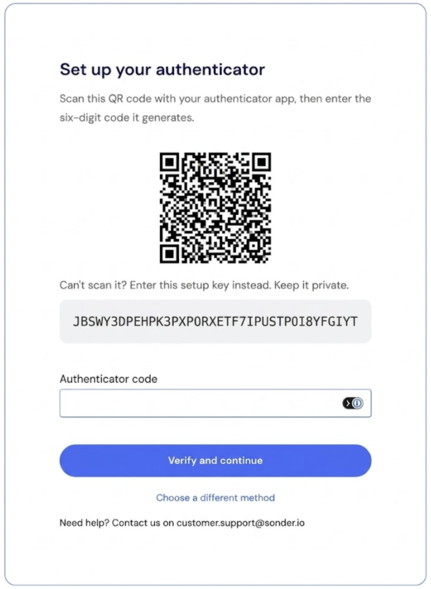
If you choose Text message (SMS):
- Enter your Australian, New Zealand or United Kingdom mobile number.
- Enter the 6-digit code sent to your mobile to verify your number.
Logging in with your authenticator app
- Log in to the Portal at customers.sonder.io/login with your email and password.
- On the Use your authenticator screen, open your authenticator app and enter the current 6-digit code.
- Select Verify and log in.
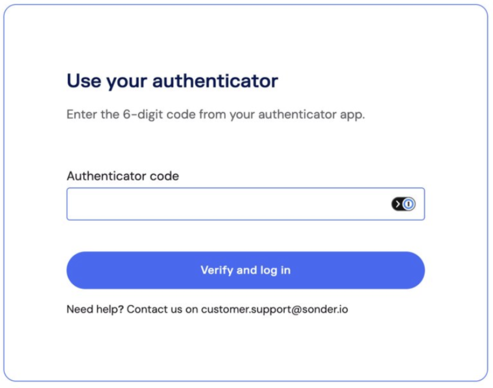
If you already use SMS
You don’t need to do anything. You’ll keep logging in exactly as you do today. In a future release, existing users will be able to switch from SMS to an authenticator app. We’ll share the timing and steps before that release.
Frequently asked questions
Which authenticator apps can I use?
You can use any app that supports time-based one-time passwords (TOTP), which is the standard most authenticator apps use. This includes Google Authenticator, Microsoft Authenticator, and 1Password.
I’m outside Australia, New Zealand or the UK. Can I use SMS?
No. SMS is only available for Australian, New Zealand and UK mobile numbers. Please choose the authenticator app.
I already use SMS. Do I need to do anything?
No. You’ll keep using SMS, and we’ll let you know when switching to an authenticator app becomes available.
Can I switch from SMS to an authenticator app now?
Not yet. This option is planned for a future release, and we’ll share the timing and steps beforehand.
I’ve lost access to my authenticator app. What should I do?
Email customer.support@sonder.io and our team will reset your 2FA.