
Team Safe lets members share an activity and their live location with a manager or trusted contact. It covers three independent activities — Share My Shift, Track My Journey, and Check On Me — and each can be used on its own. Managers receive a notification the moment a member starts any activity, and can monitor their team's safety in real time from the Activities dashboard.
For Members
Share My Shift
Share My Shift lets you share your live location with a contact for a set period of time — useful for lone work, mobile shifts, or any time you want someone to know where you are.
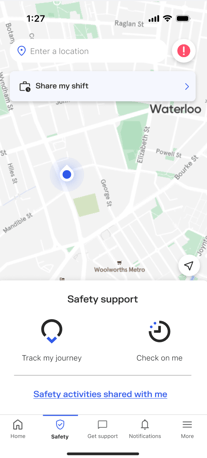
To start a shift:
- Tap Share my shift on the Safety home screen.
- Add a contact — search by mobile number or Sonder account email.
- Set your shift end time (choose a specific time or use a countdown).
- Optionally add a note (e.g. location, task) to share with your contact.
- Tap Start shift.
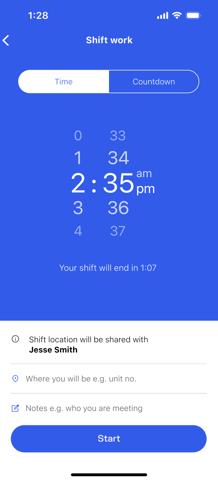
Your location is shared for the duration of the shift only. Once the shift ends — or you end it manually — location sharing stops automatically.
Tip: Your shift ends automatically at the scheduled time. You don't need to remember to close it.
Track My Journey + Share
Track My Journey monitors your location during travel and alerts your contact if you do not confirm your safety at the end of the journey.
When starting a Track My Journey, you'll now see a Share with someone toggle. Toggle it on, select a contact, and your live location will be shared with them for the duration of your journey.
- Open the Sonder app and select Team Safe.
- Tap Track My Journey.
- Toggle on Share to make your live location visible to a contact.
- Add your contact and set your expected arrival time.
- Tap Start to begin.
Your contact receives a push notification when you start your journey. If you do not confirm your safety by your arrival time, your contact is alerted. Tap Stop tracking when you arrive to end the journey and stop location sharing.
Check On Me + Share
Check On Me sends your contact a check-in prompt at a set interval. If you do not respond, your contact is notified. Set it once at the start of a shift and cover keeps running — one tap to confirm, and the next check-in starts on its own.
- Open the Sonder app and select Team Safe.
- Tap Check On Me.
- Toggle on Share to make your live location visible to a contact. Manager sharing must be turned on to use recurring check-ins.
- Add your contact.
- Set your check-in interval and your end time. Cover can run for up to 24 hours. The interval stays the same for the duration — it cannot be changed between check-ins in this version.
- Tap Start to begin.
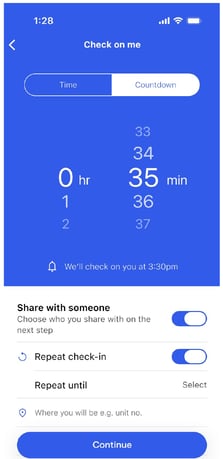
Check-ins repeat automatically at your chosen interval. You do not need to restart the activity after each check-in. Your contact receives a push notification when you start and is alerted if you miss a check-in. A shift is not required to start Check On Me — the two are independent.
I need help
At any point during an active Team Safe activity, tap I need help to escalate to Sonder's support team. This notifies your shared contact immediately and connects you to 24/7 expert response. If you are in a recurring Check On Me when an escalation occurs, the check-in schedule pauses while Sonder's team looks after you.
For Managers
Activities dashboard
The Activities dashboard gives you a real-time view of who is covered and who has dropped offline — without needing to open the app first. You receive a push notification the moment a team member starts a Share My Shift, Track My Journey, or Check On Me activity.
The map displays live markers for active members. Members whose location is offline fade to 40% opacity, so gaps in cover are immediately visible.
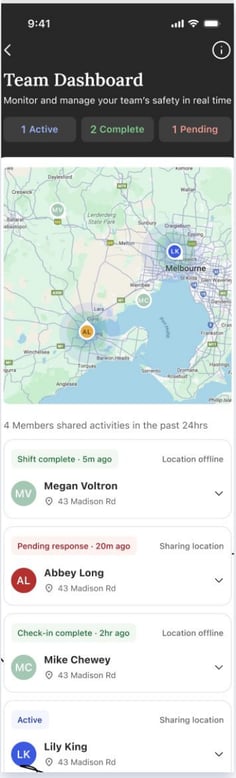
At the top of the dashboard, summary counts show how many activities are Active, Complete, and Pending at a glance. Below that, one card per member shows their current status, last known location, and whether live location is being shared.
Tap any member card to see every activity they have run in the last 24 hours, each with its own status and detail:
- Recurring Check On Me — shows the check-in interval (e.g. every 10 minutes), status, and location
- Check On Me and Share My Shift — show planned end time, location notes, and any member note
- Track My Journey — shows the last known location time and status
Tap the info icon on the dashboard to open a plain language key to every status. The key covers:
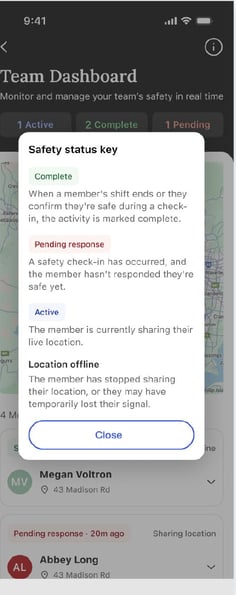
- Active — the member is currently sharing their live location
- Pending response — a check-in prompt has been sent and the member has not yet confirmed they are safe
- Complete — the shift ended, or the member confirmed their safety during a check-in
- Confirmed safe — the member has been confirmed safe following a safety check-in
- Location offline — sharing has stopped, or signal was temporarily lost. If signal drops during a recurring Check On Me, the check-in schedule continues running on Sonder's side, so cover is maintained between check-ins.
Escalation alerts
If a member misses a check-in or taps I need help, their activity card is highlighted in orange. Once Sonder's support team confirms the member's safety, the card turns green.
Note: You'll receive an alert through the app if an escalation is triggered — no separate system needed.
Frequently asked questions
Do I need to set up all three activities, or can I use just one?
Each activity — Share My Shift, Track My Journey, and Check On Me — works independently. Use whichever ones suit the situation.
Who can use recurring Check On Me?
Any Team Safe-eligible member, provided manager sharing is turned on when they start the activity.
Do I need to be on a shift to start a recurring Check On Me?
No. Check On Me and Share My Shift are separate functionalities. You can start a recurring Check On Me without an active shift.
Can I change my check-in interval once cover has started?
Not in this version. The interval is set at the start and stays the same for the full duration.
What happens if I miss a check-in?
The existing escalation process runs. Sonder's team steps in and the recurring check-ins pause while you are being looked after. If signal is lost temporarily, the check-in schedule continues running on Sonder's side, so cover is maintained.
Will my manager know when I start an activity?
Yes. Your shared contact receives one push notification the moment you start any Team Safe activity — Share My Shift, Check On Me, or Track My Journey.
What do the dashboard status labels mean?
Tap the info icon on the Activities dashboard to open a plain language key. It covers Active, Pending response, Complete, Confirmed safe, and Location offline